Home / Guide
How to use CHYB
Everything CHYB can do, step by step. Pick a topic on the list, or just scroll. New here? Start with the first two.
Getting started
CHYB is an AI trading assistant. You ask it about a market in plain words, and it answers from live price data. It also builds indicators and trading scripts for you. You can be chatting in about a minute.
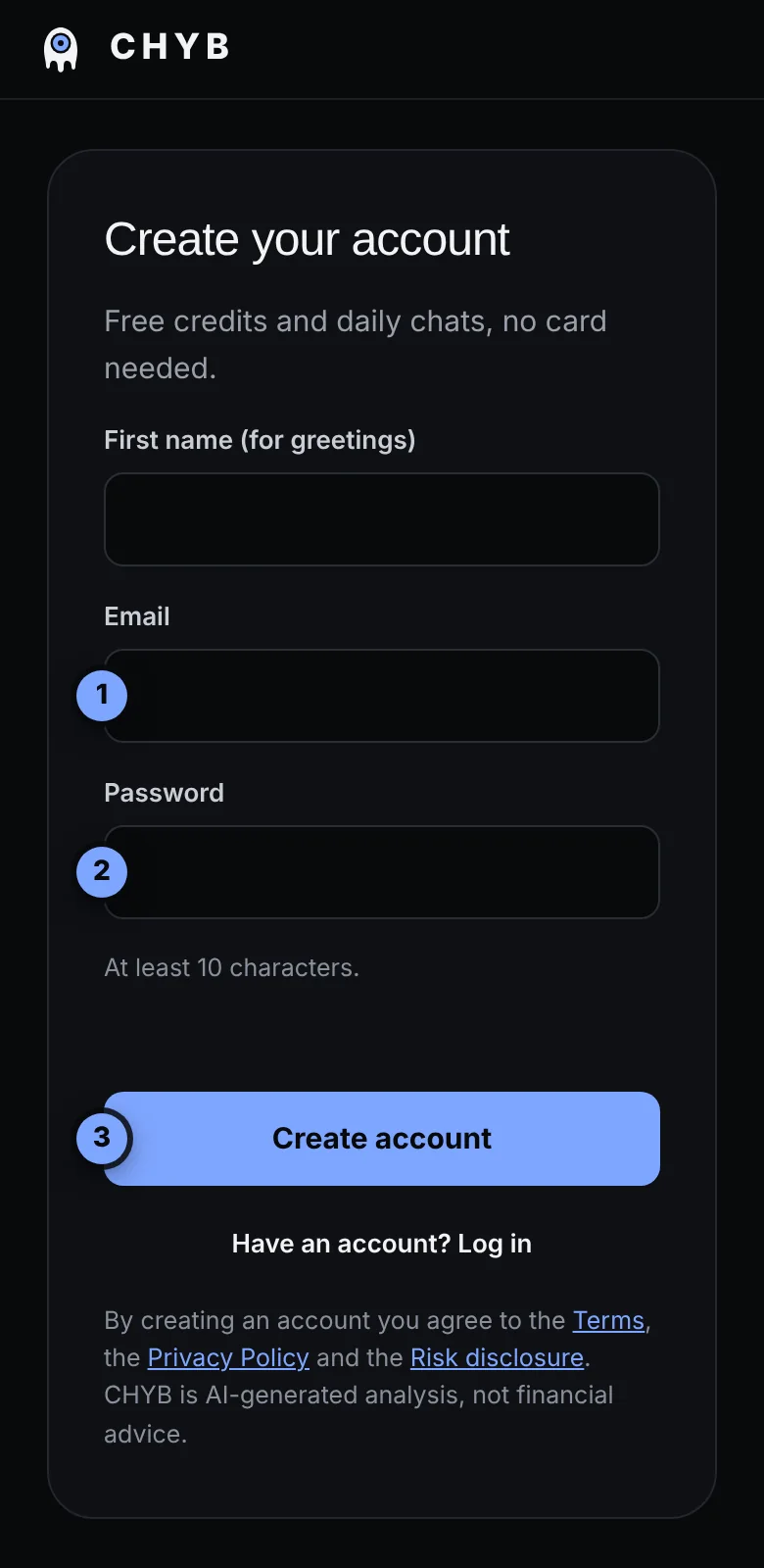
- Go to chyb.ai/app and press Create an account.
- Type your email and a password of at least 10 characters (callouts 1 and 2), then press Create account (3).
- Open the confirmation link we email you. This switches on your free credits.
- Start asking.
When you confirm your email you get 10 free credits. Every day you also get 5 free Quick reads and 10 free casual chats. They reset at 00:00 UTC.
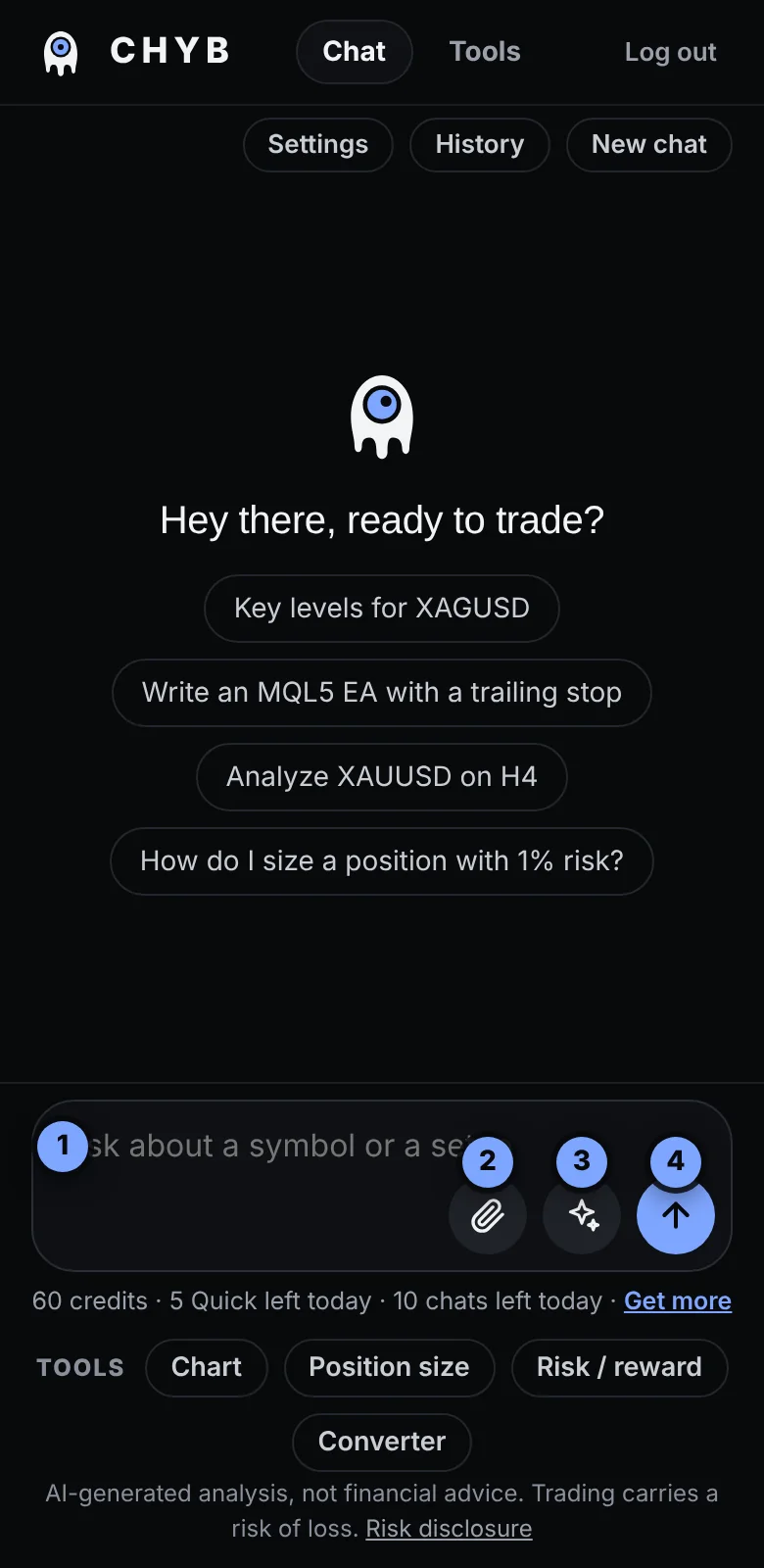
Asking a question, and the five modes
The message box is at the bottom. Type your question and press the arrow, or press Enter.
- Type your question. Plain English is fine.
- The paperclip attaches a chart screenshot (see Screenshot analysis).
- The round button picks a mode. Most of the time, leave it on Auto.
- The arrow sends.
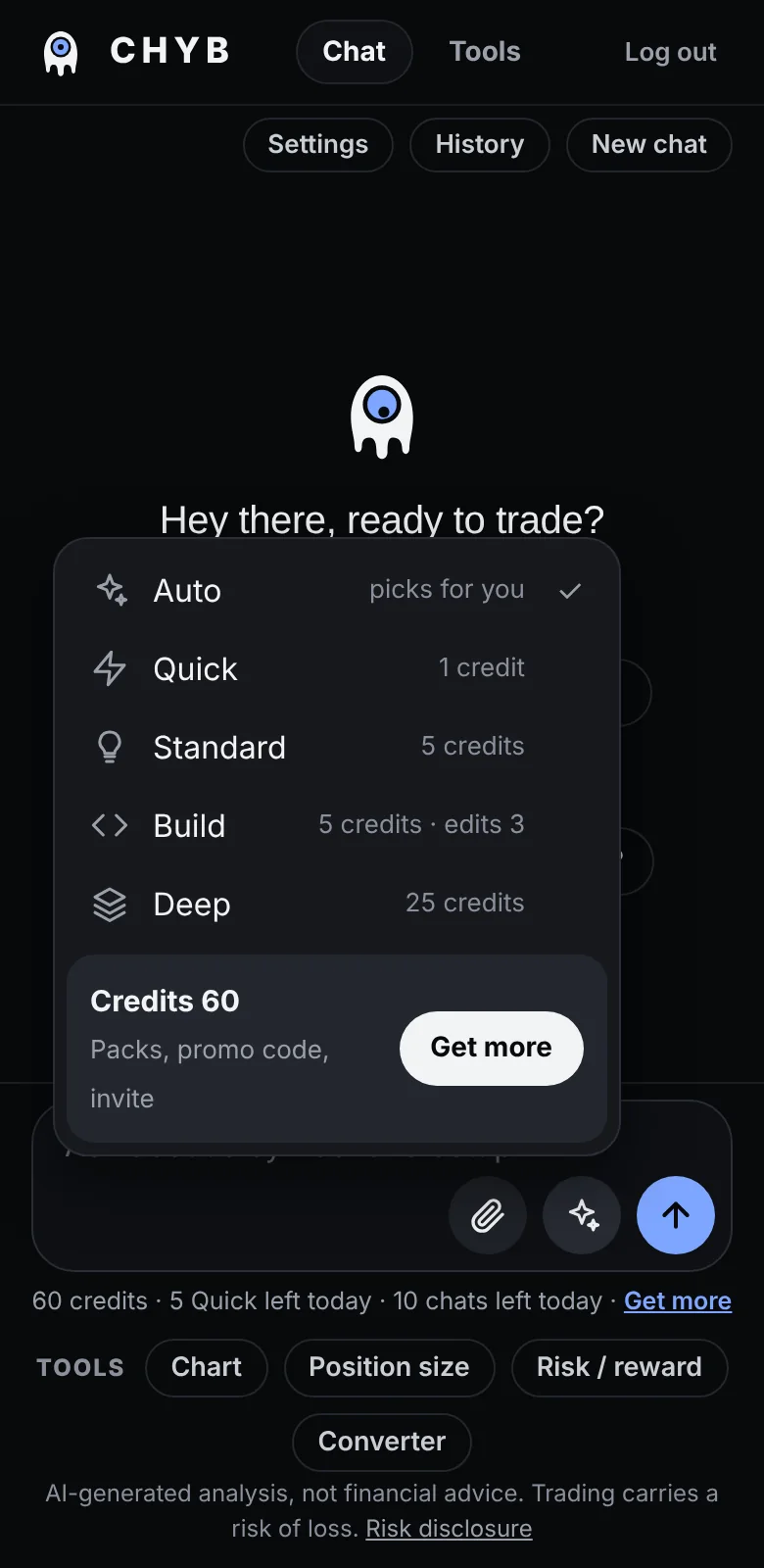
Auto chooses for you: a market question gets a short Quick read, code requests go to Build. Pick a mode yourself when you want more:
| Mode | Cost | What you get |
|---|---|---|
| Quick | 1 credit (5 free a day) | A short read with a verdict, key levels, invalidation and main risk. |
| Standard | 5 credits | A fuller analysis with scenarios and what would change the view. |
| Build | 5 credits | An indicator, Expert Advisor or script, with steps to add it. Changes to it afterwards cost 3. |
| Deep | 25 credits | Several AI models study the market separately, then a final model combines their views. |
Casual chats and the calculators are free. If you don't have enough credits, CHYB tells you before it spends anything.
"Should I buy or sell now?"
This is what CHYB is built for. Ask about any market it has data for, for example gold, EURUSD, BTC or the Nasdaq, and name a timeframe if you like.
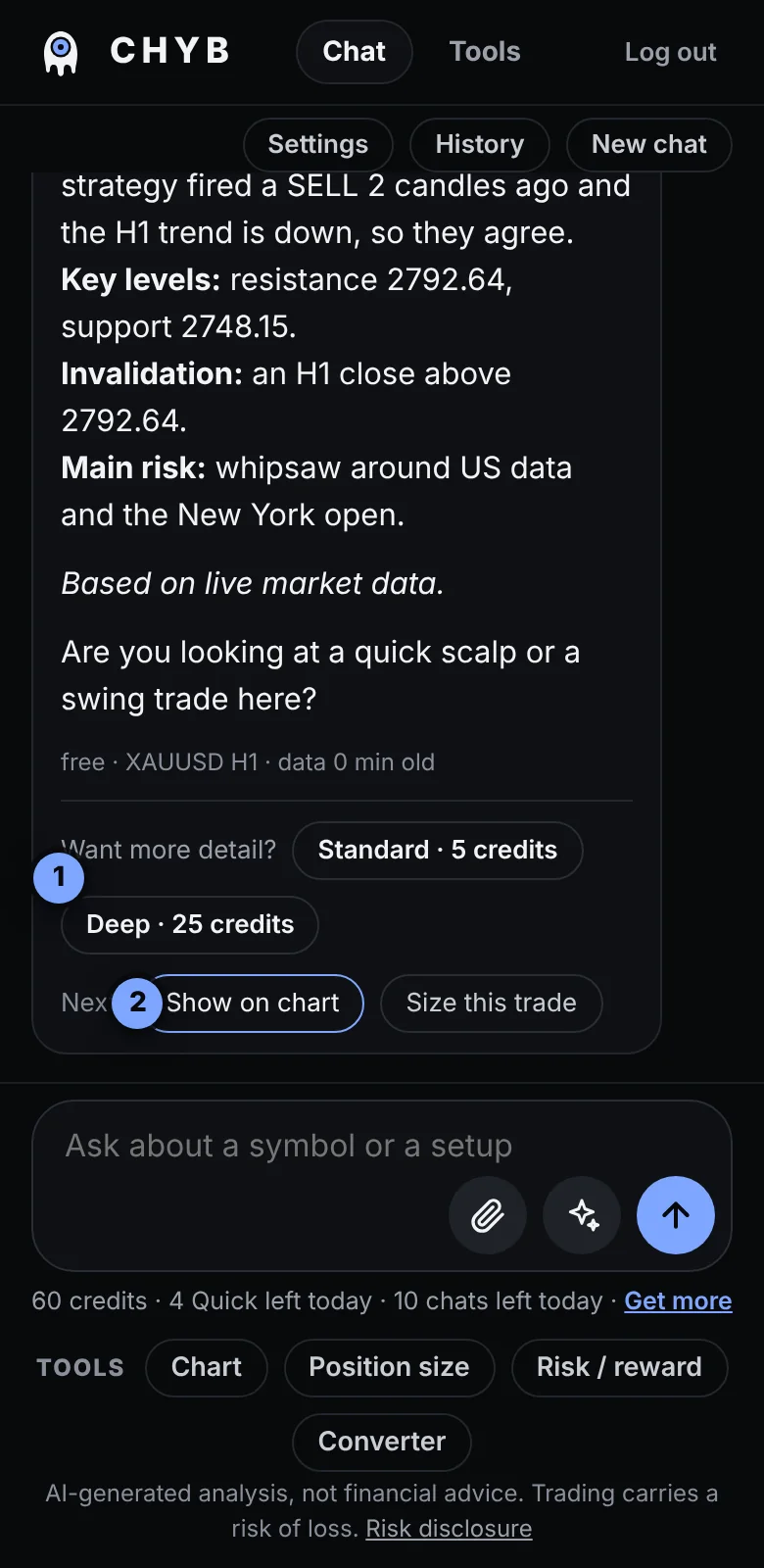
- Verdict is BUY, SELL or WAIT, with a few words why. WAIT is a real answer. It means there is no clear edge right now.
- Key levels are the nearest support and resistance from the real chart data.
- Invalidation is the price where the idea is wrong. A stop usually goes there.
The answer also lists the bias, the main risk, a line on what the scalp strategies show (see Scalp strategies), and, when it matters, whether the dollar and yields agree. CHYB ends with a short question about your plan, so you can keep going.
You can ask a follow-up without repeating the market. "Should I buy?" right after a read is about the same market.
Is gold a buy or sell now?Quick read on EURUSD H1Should I sell BTC here?
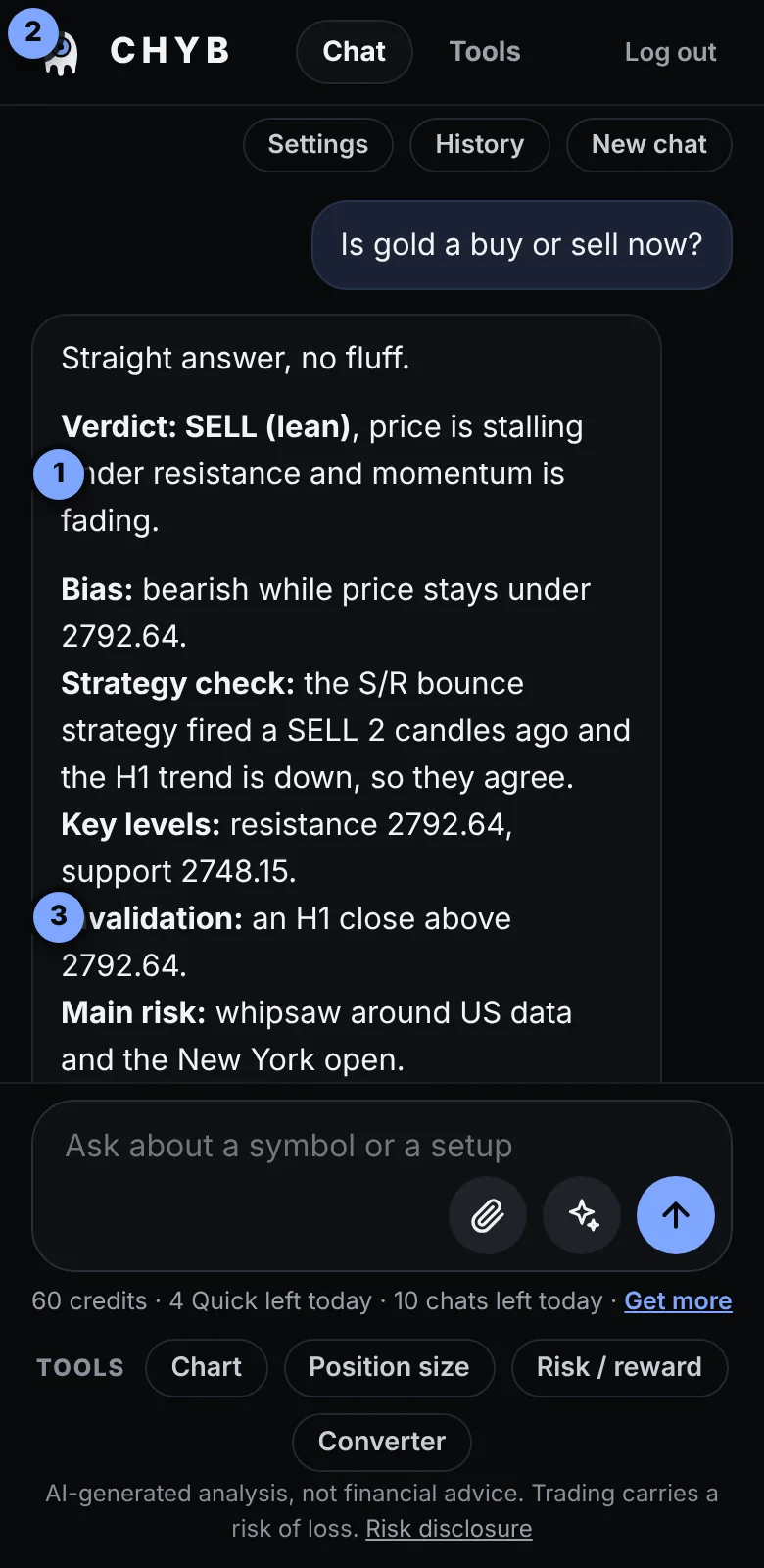
Under a Quick read, Want more detail? (1) runs the same question as Standard or Deep. The Next buttons (2) jump to the chart or the position-size calculator.
Show on chart: the arrow and the levels
Press Show on chart under an answer and CHYB opens the live chart with its idea drawn on it. The chart itself is always free.
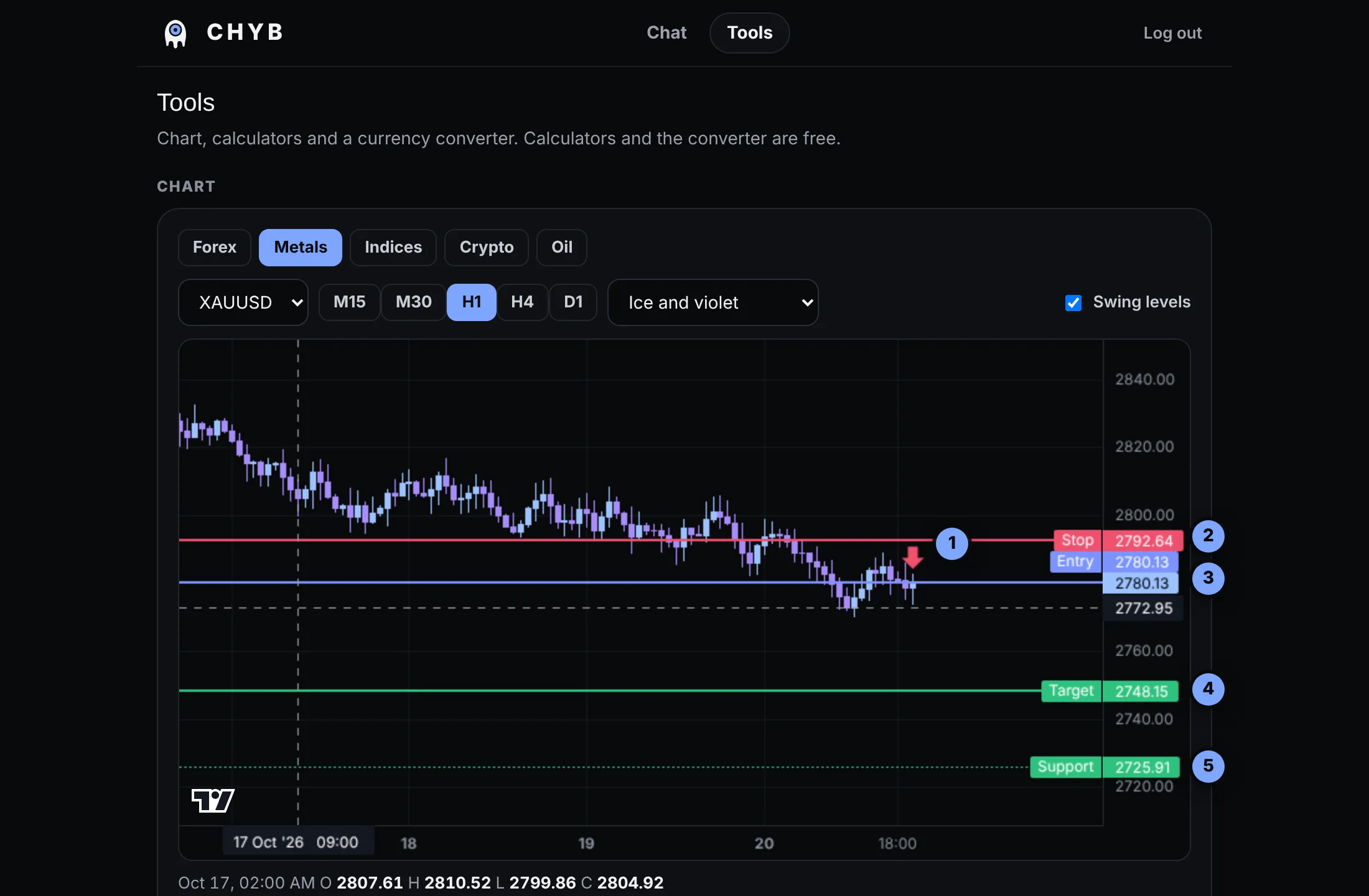
- The arrow shows the direction of the idea.
- Stop (red) is where the idea is invalidated.
- Entry (blue) is where the idea starts.
- Target (green) is where it aims to take profit.
- Support and resistance are dotted lines from the real swing highs and lows.
Below the chart: Save image downloads the chart with its levels as a picture. Clear AI levels removes the drawing. Ask CHYB about this chart sends the chart's market and timeframe back to the chat. Change the market and timeframe at the top, and scroll or pinch to zoom.
CHYB checks every level against live data and drops anything that doesn't make sense. If the AI had no clear trade, you only get support and resistance, with no arrow. That is on purpose.
Screenshot analysis
Have a chart open in TradingView or MetaTrader? Take a screenshot and let CHYB read it.
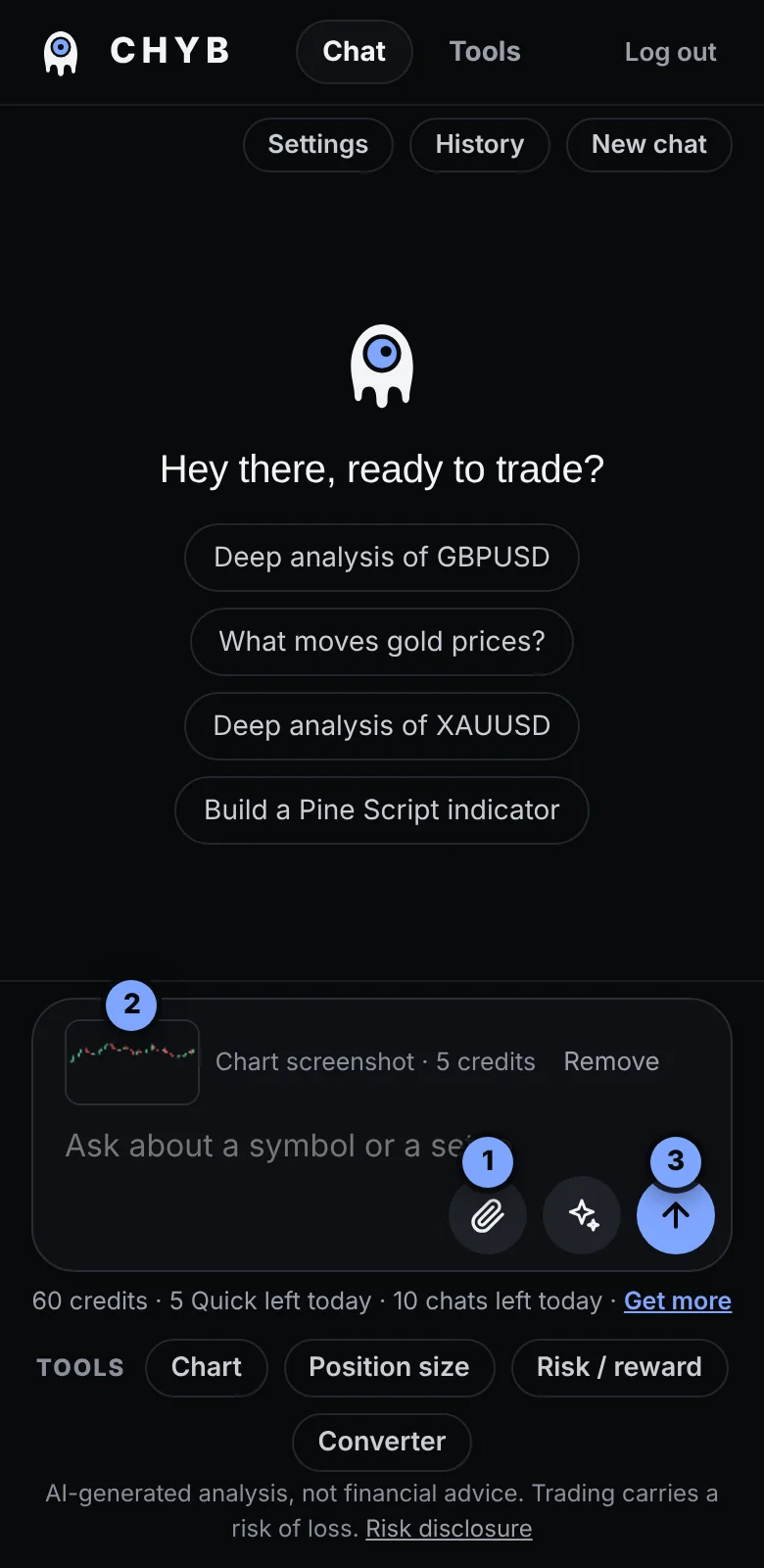
- Press the paperclip (1) and choose a PNG, JPEG or WEBP image.
- A small preview appears (2). You can remove it if it is the wrong one.
- Type a question, or just press send (3). It costs 5 credits.
For the best read: crop to the chart, include the timeframe, and mention the market, for example "XAUUSD H1". When you name the market, CHYB checks the levels against live data and can draw them on the chart. Without a name, prices from an image are approximate.
Your image is shrunk on your device, sent to the AI once and not saved. Only your text is kept in your history. Don't include anything private in the picture.
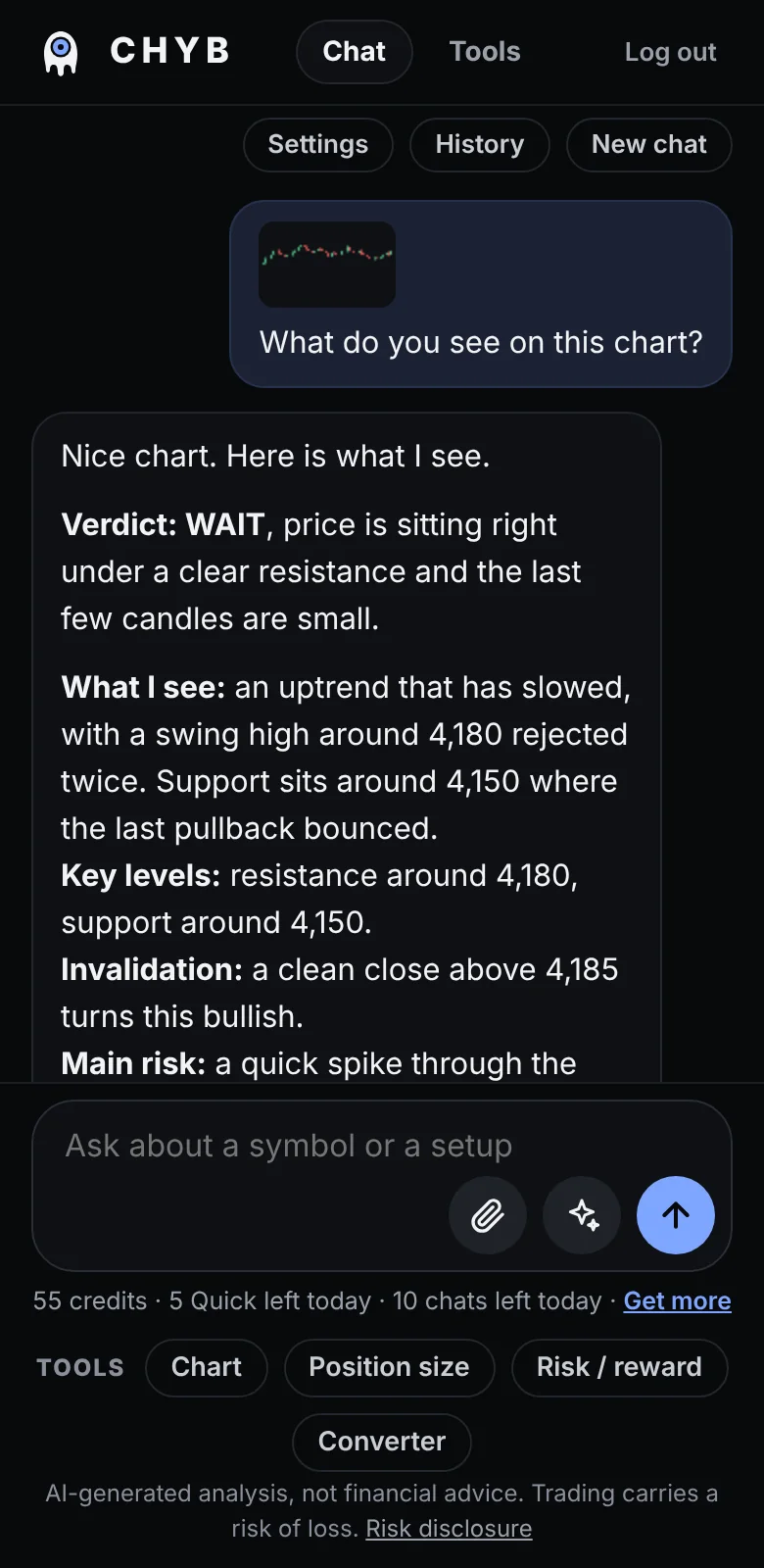
The answer reads the chart like a trader: trend, structure, key levels, any indicators it can see, and a verdict.
News and economic releases
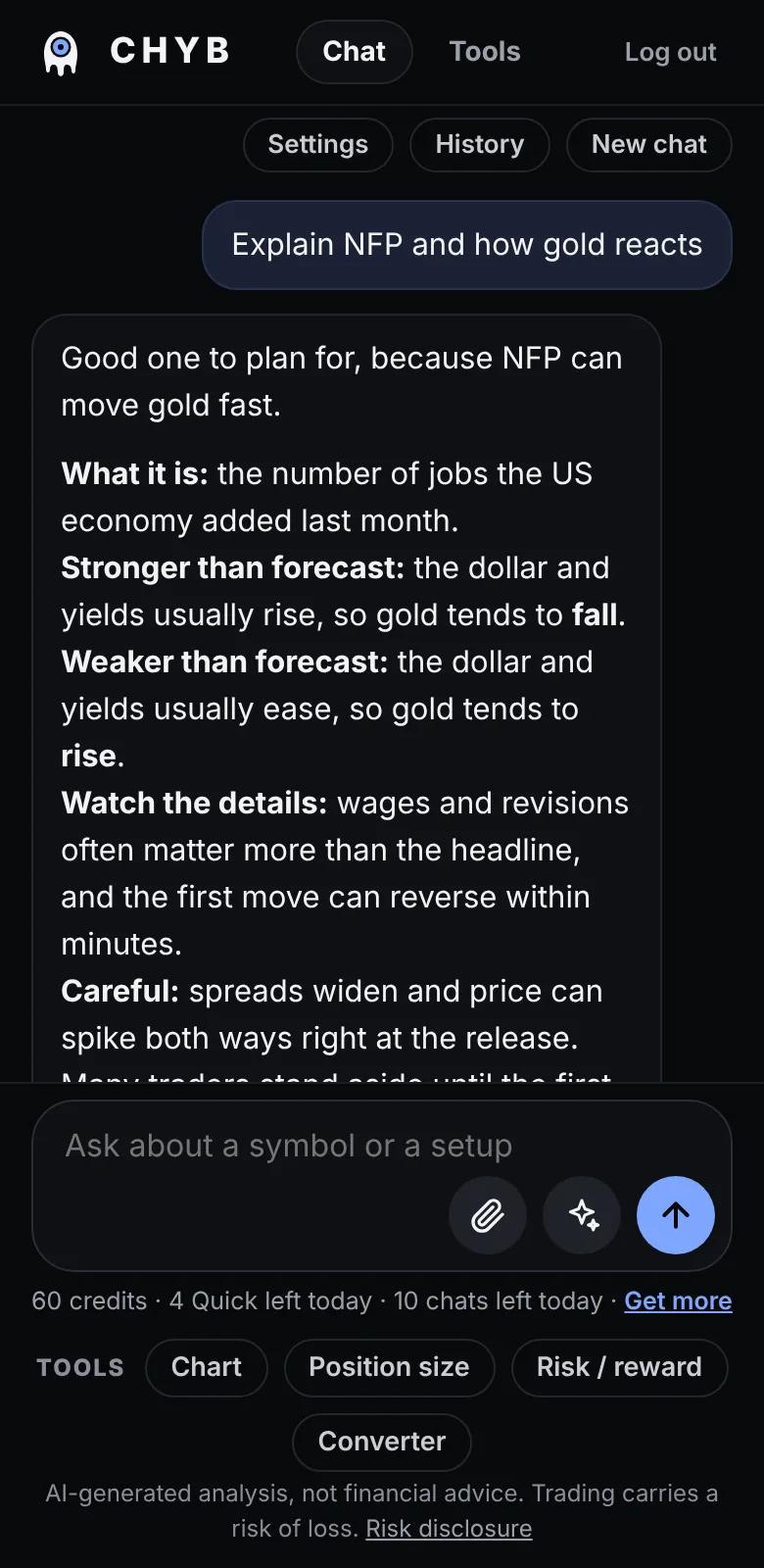
Ask about NFP, CPI, PMI, GDP, FOMC or any rate decision, and CHYB explains what the number measures, how gold, the dollar and the market usually react to a result above or below forecast, and what to watch in the details.
When the live calendar is connected, CHYB also knows what is due and what was just released against its forecast. In the 30 minutes before and the hour after a high-impact release, it tells you plainly that a big move is close and that waiting is often wise, because spreads widen and price can spike both ways. The scalp engine and Telegram alerts pause in that window too.
If CHYB can't see the calendar, it says so and never invents figures. Tell it the forecast and the result and it will read them with you.
Explain NFP and how gold reactsWhat is due today that moves gold?
Scalp strategies
CHYB runs three rule-based scalp strategies on 5-minute gold candles, with the 1-hour trend as a filter: trend pullback, support and resistance bounce and RSI reversion. They are one input for the AI, not the final word. When they agree with the trend, the idea gets stronger. When they disagree, CHYB leans to WAIT.
Settings: tell CHYB how you trade
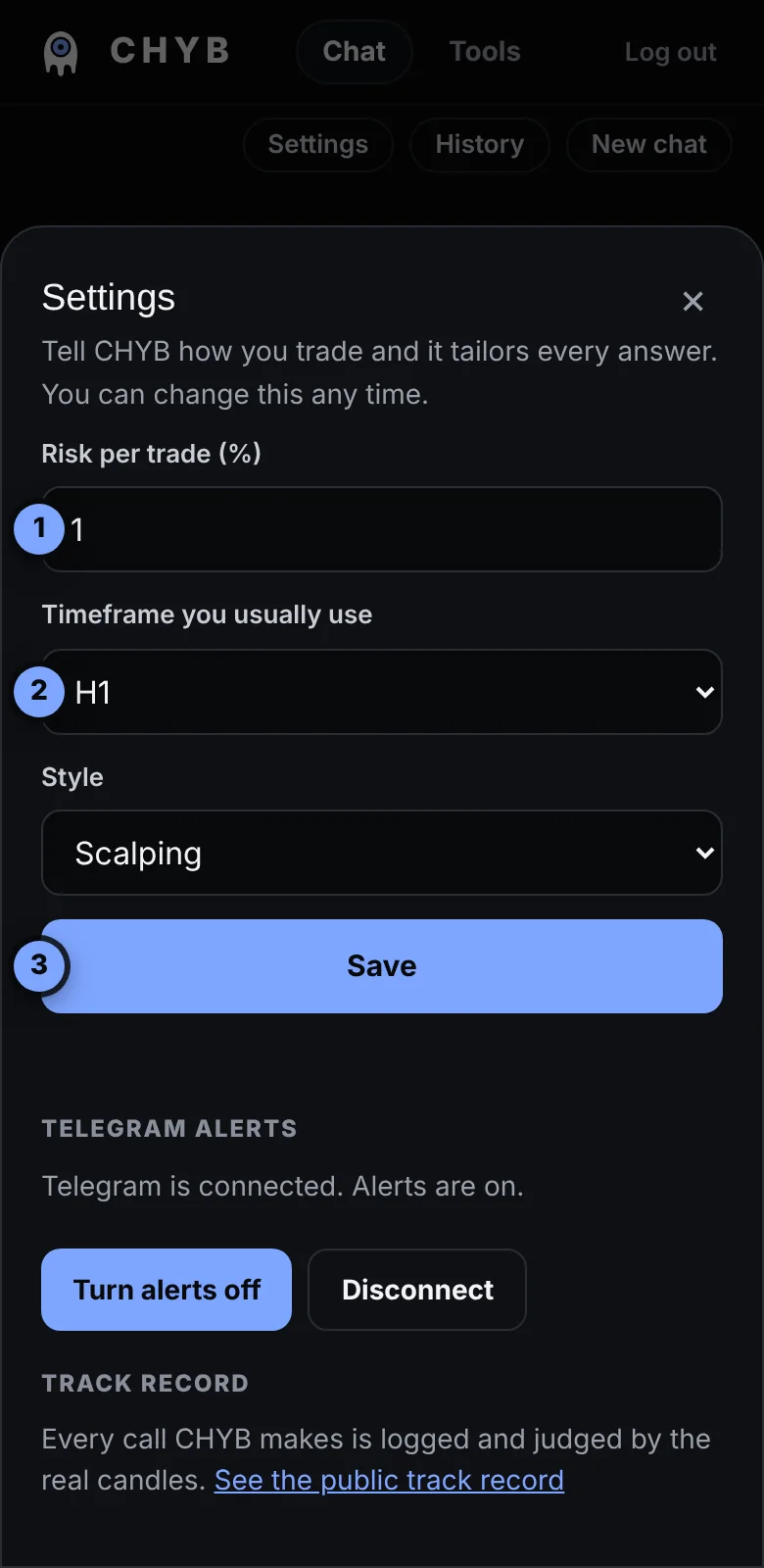
Press Settings at the top of the chat.
- Risk per trade as a percentage of your account, for example 1.
- Timeframe you usually use. Questions without a timeframe use this one.
- Style: scalping, intraday or swing. Press Save.
CHYB uses these to shape its answers: which timeframe to read, and how to talk about position size. It never asks for your account balance. It gives size as a risk percentage with the stop distance, and points you to the Position size calculator.
Telegram alerts
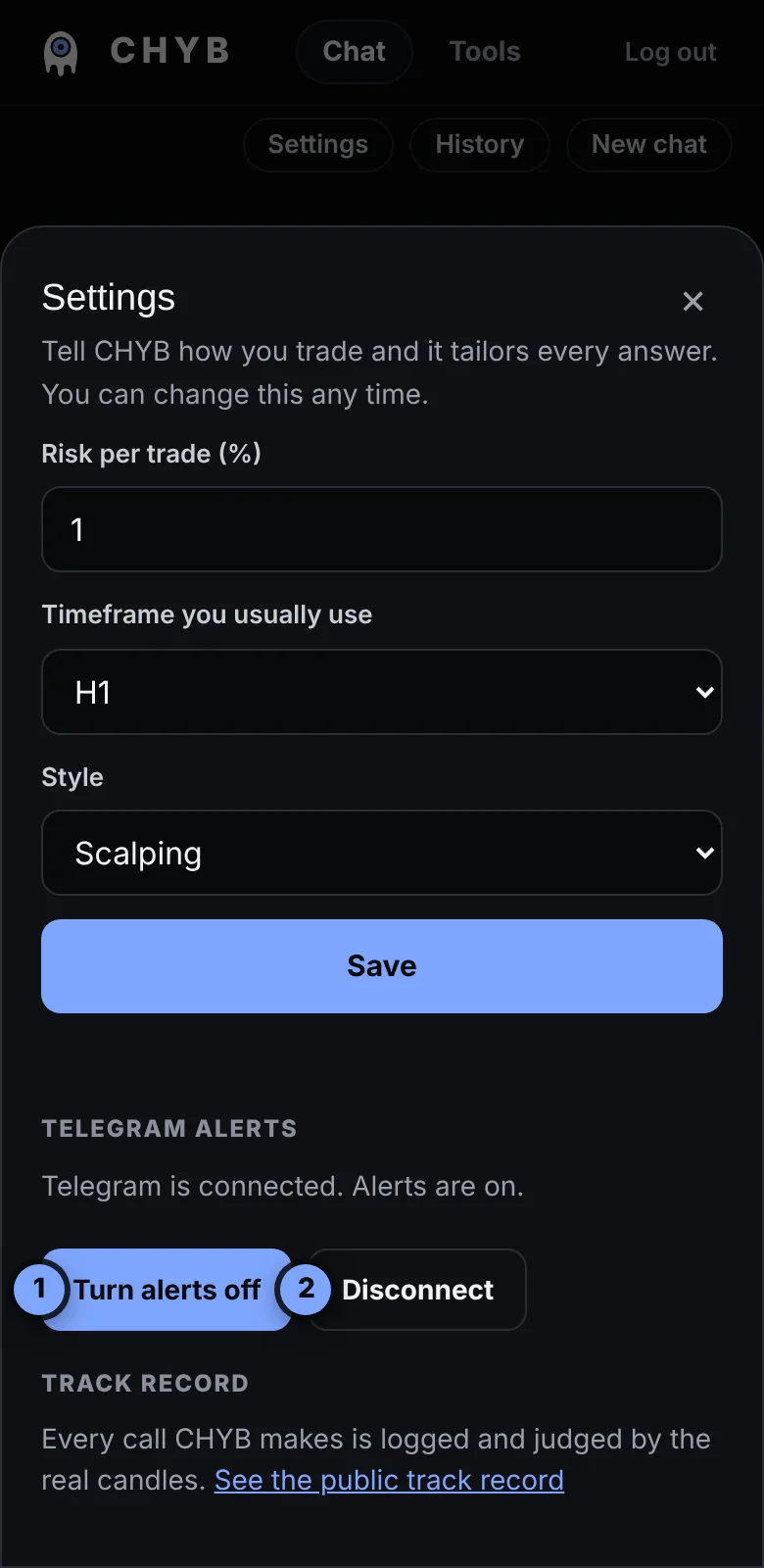
Get a message on your phone the moment a scalp setup fires, even when the app is closed. Alerts are part of the monthly plan.
- Open Settings and press Connect Telegram.
- Telegram opens. Press Start.
- Come back and reopen Settings. It says Telegram is connected.
You can turn alerts off and on (1) or disconnect (2) any time, or send /stop to the bot in Telegram. You get at most 8 alerts a day, and none around high-impact news. Each alert shows the strategy, the side and the price.
Build indicators and scripts
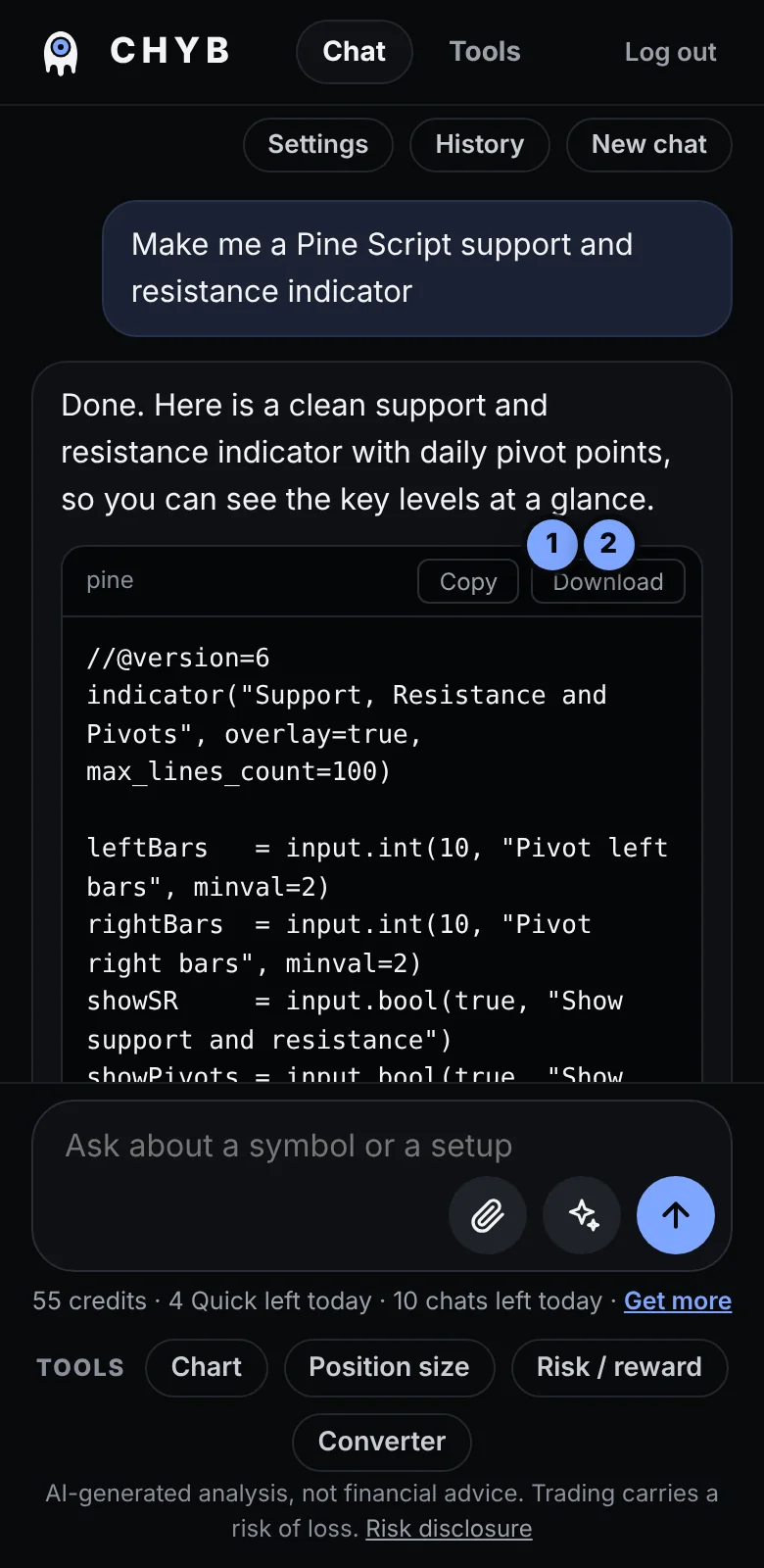
CHYB writes Pine Script v6 for TradingView, MQL5 for MetaTrader 5 and Python for trading work. Describe what you want in plain words. It replies with a short explanation, the complete code, and numbered steps to add it.
- Copy puts the code on your clipboard.
- Download saves it as a file.
Then ask for changes in the same chat, such as "add an alert" or "turn this into a strategy". A change to code CHYB just wrote costs 3 credits instead of 5.
Always test an Expert Advisor or strategy on a demo account first.
Make me a Pine Script indicator for support and resistanceWrite an MT5 EA that trades an EMA cross with a fixed stop
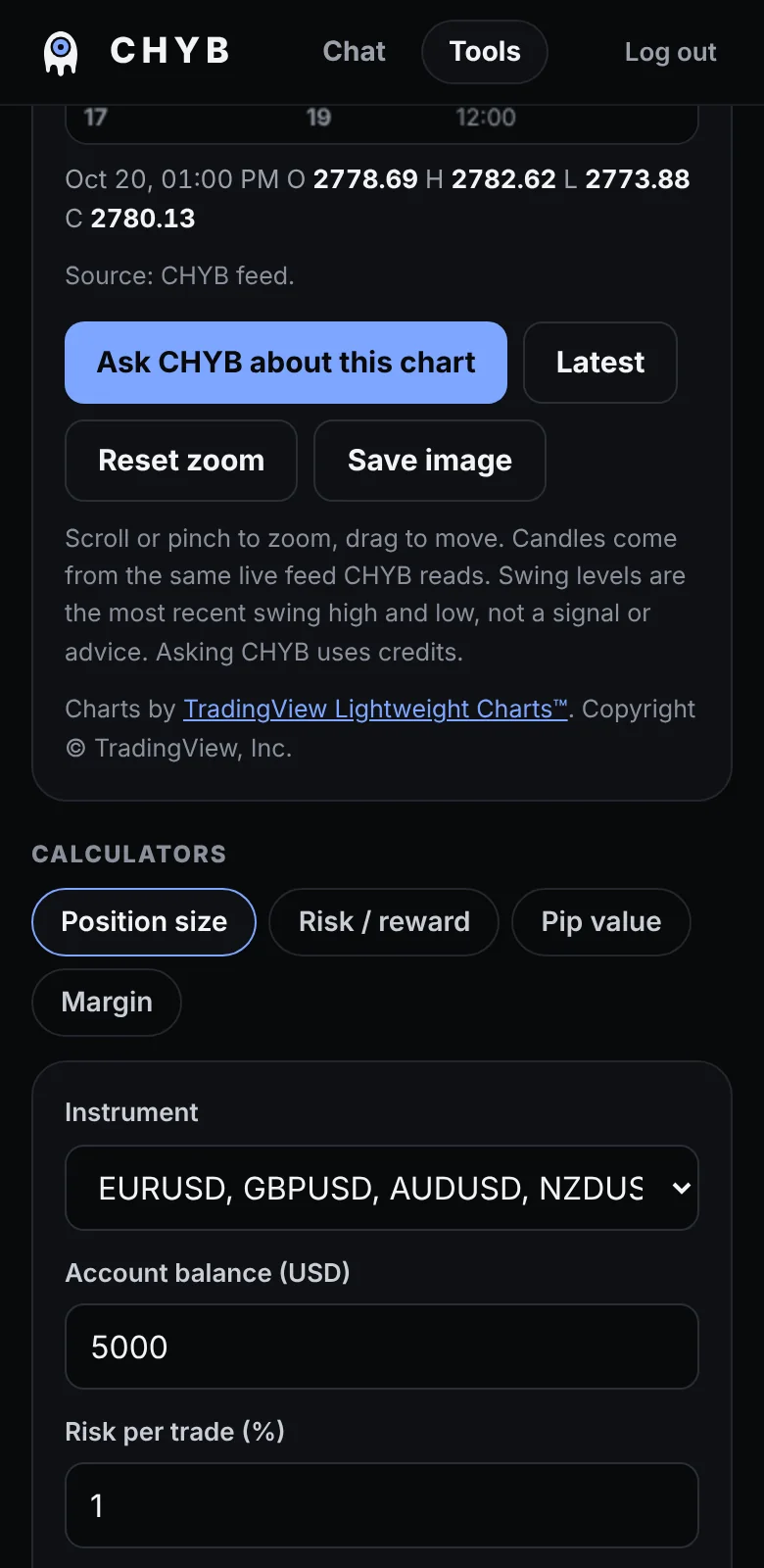
Tools: chart, calculators and converter
Open the Tools tab at the top. Everything here is free.
- Chart with live data for forex, metals, indices, crypto and oil, in several colour styles.
- Position size: how many lots for your balance, risk and stop.
- Risk / reward: the ratio of a trade and the win rate you need.
- Pip value and Margin for common instruments.
- Currency converter with daily rates.
Calculators give estimates for learning. Contract sizes and margin rules differ by broker, so check yours.
The same calculators are public at chyb.ai/tools, no account needed.
Credits, the monthly plan and codes
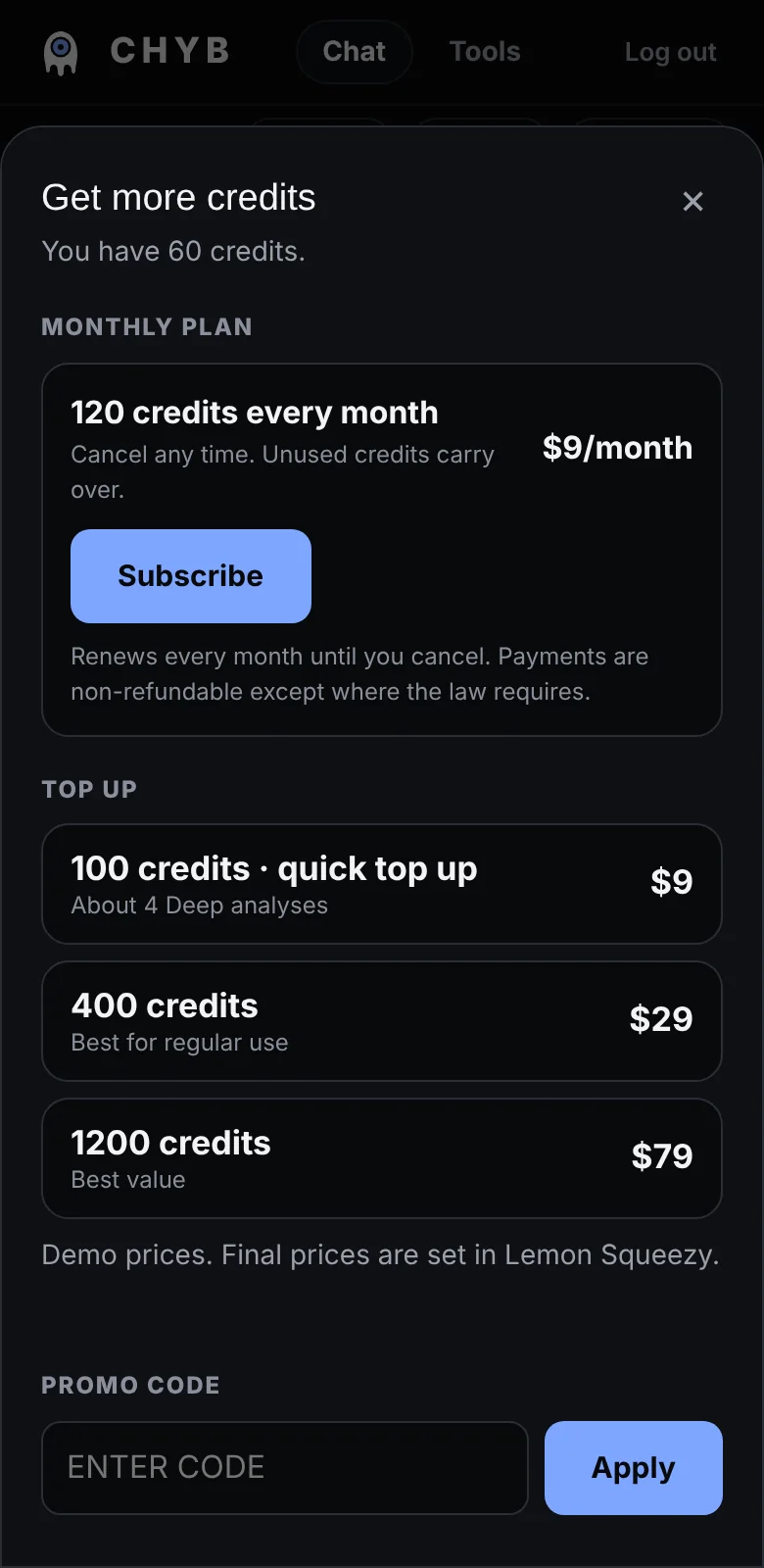
Press Get more under the message box.
- Monthly plan: 120 credits each month. Cancel any time. It also includes Telegram alerts.
- Top up: one-time packs. Pack credits don't expire.
- Promo code: type it and press Apply.
- Invite a friend: share your link. When your friend confirms their email and sends a first message, you both get credits.
Payments are handled by Lemon Squeezy. We never see your card number. Credits are for using the software and are not an investment. See the credits page and our Terms for details.
Chat history and your privacy
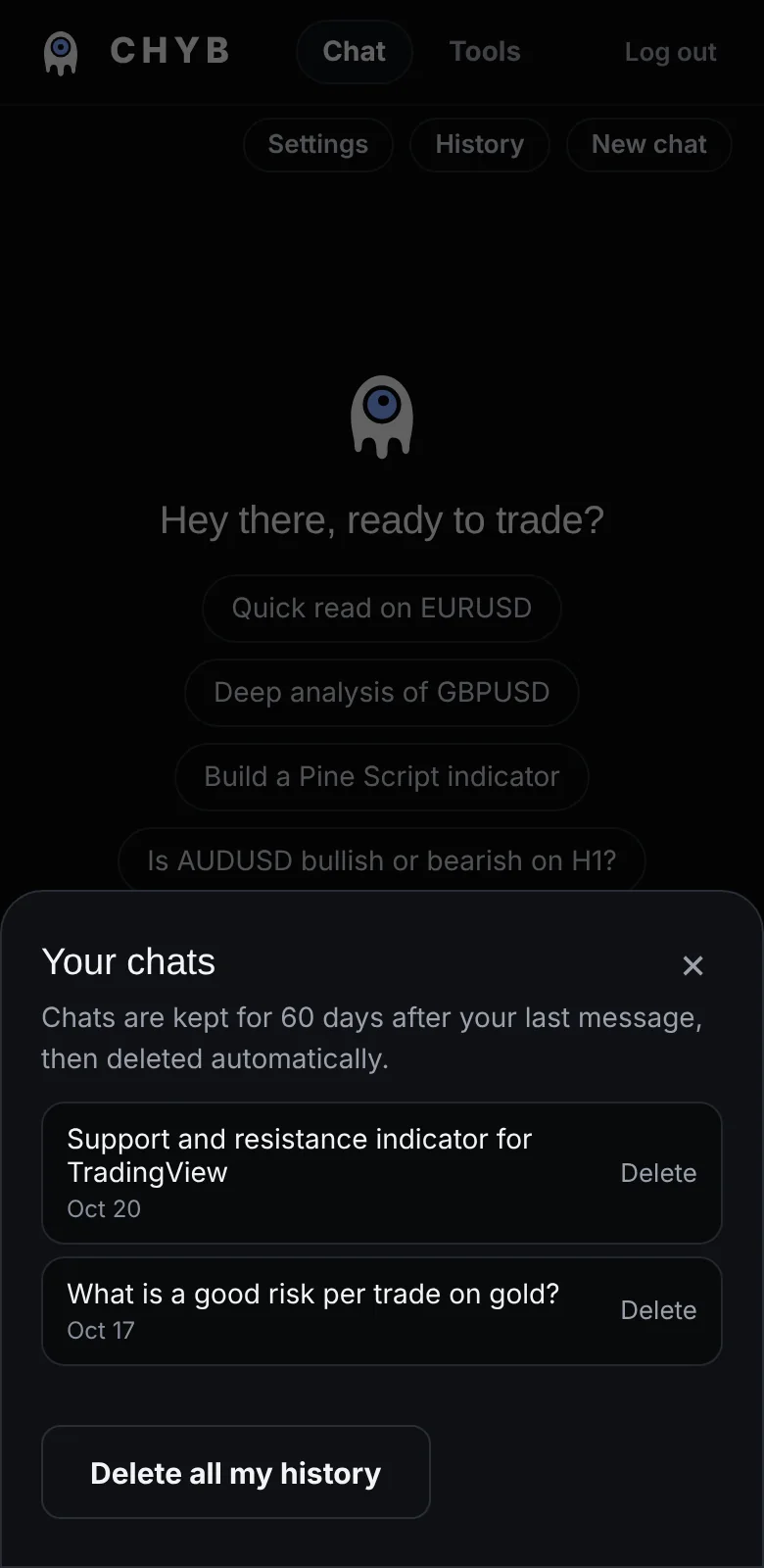
Press History to find your earlier chats, and New chat to start a fresh one. Chats are kept for 60 days after your last message, then deleted automatically. You can delete one chat, or all of your history, yourself at any time.
Casual small talk isn't saved. Chart screenshots are never saved. Read the full Privacy Policy for details.
Good to know
- CHYB gives analysis, not financial advice. It is a second opinion. You decide, and you can lose money. Read the Risk disclosure.
- It does not place trades, hold money or act as a broker.
- It can be wrong. Markets are uncertain, and AI makes mistakes. Use the invalidation level and manage your risk.
- It only reads markets its data feed sends. If a market isn't available, it says so instead of guessing prices.
- At weekends and holidays some markets are closed and the data is old. CHYB tells you when that is the case.
- Never share passwords, card numbers or private details in a chat or a screenshot.
Questions, ideas or something looks wrong? Write to info@chyb.ai.
CHYB provides AI-generated analysis for information and education. It is not financial advice and does not guarantee any result. Trading carries a risk of loss, so never risk money you cannot afford to lose.